> ## Documentation Index
> Fetch the complete documentation index at: https://docs.time2.bike/llms.txt
> Use this file to discover all available pages before exploring further.
# Profile settings
> Update your account name, email, and phone numbers.
Your **account profile** is who you are to Time2Bike — separate from
[participant profiles](/riders/race-day/rider-profile), which are the
racing identities tied to your account.
Find it at `time2.bike/account/settings`.
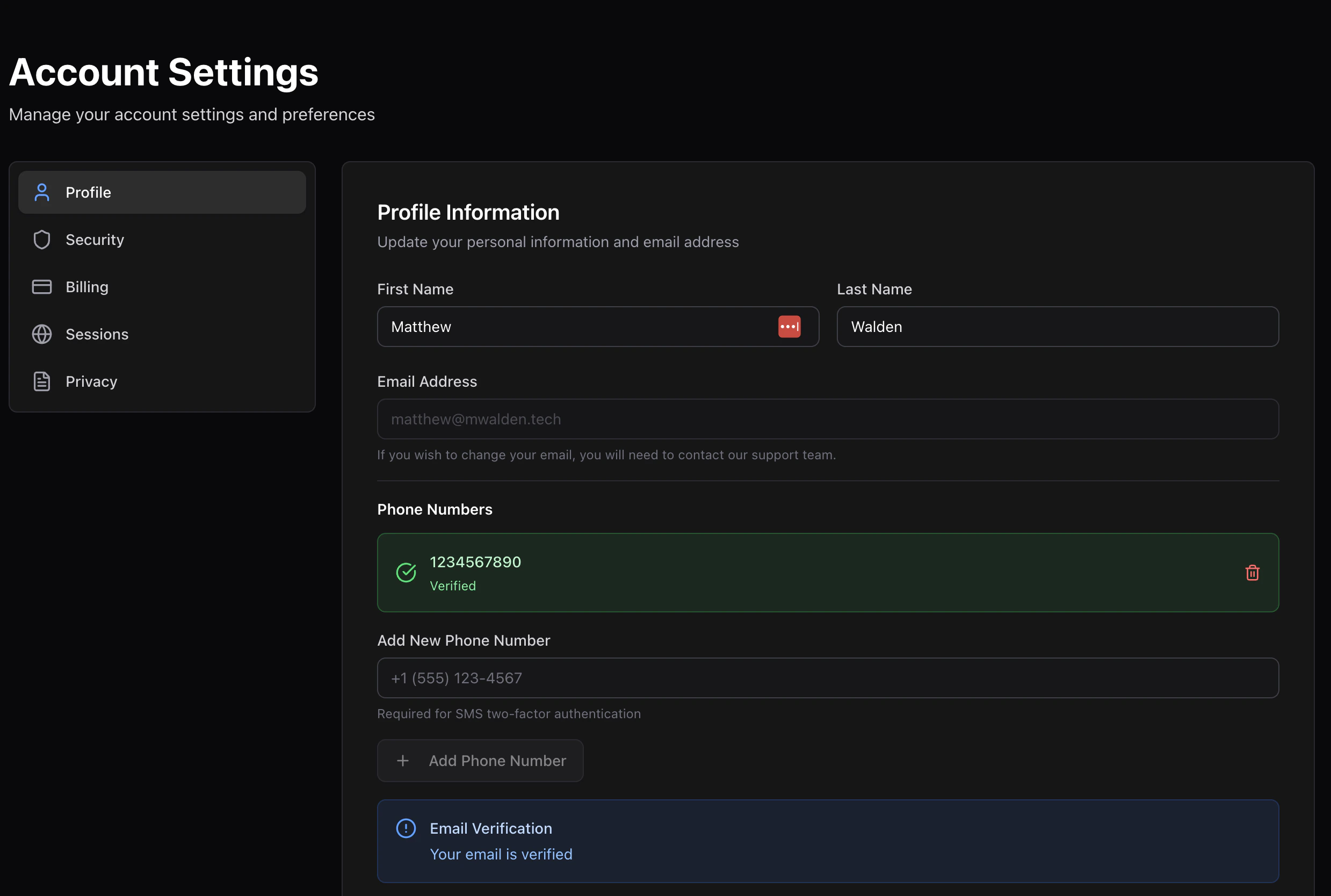 ## Name and email
* **First name** and **Last name** — used on receipts and in dashboards
for orgs you belong to. Click **Save** after editing.
* **Email** — your sign-in email. Changing it requires verifying the new
address before the change takes effect.
## Phone numbers
You can add multiple phone numbers to your account. They power:
* **SMS multi-factor authentication** at sign-in
* **SMS notifications** from organizers (when supported)
* **Invite recovery** — if someone invites you by phone
### Adding a phone
Enter the phone in E.164 format (e.g. `+15551234567`).
Time2Bike texts a 6-digit code. You have **3 minutes** before it
expires.
Submit the code to verify. The phone moves to your **Verified
phones** list.
Unverified phones can't be used for MFA or SMS notifications.
### Removing a phone
Click the **Trash** icon next to a phone to remove it. If that phone was
your MFA method, MFA is automatically disabled — re-enable it in
[Security](/riders/account/security-and-sessions) with a different
phone.
## Name and email
* **First name** and **Last name** — used on receipts and in dashboards
for orgs you belong to. Click **Save** after editing.
* **Email** — your sign-in email. Changing it requires verifying the new
address before the change takes effect.
## Phone numbers
You can add multiple phone numbers to your account. They power:
* **SMS multi-factor authentication** at sign-in
* **SMS notifications** from organizers (when supported)
* **Invite recovery** — if someone invites you by phone
### Adding a phone
Enter the phone in E.164 format (e.g. `+15551234567`).
Time2Bike texts a 6-digit code. You have **3 minutes** before it
expires.
Submit the code to verify. The phone moves to your **Verified
phones** list.
Unverified phones can't be used for MFA or SMS notifications.
### Removing a phone
Click the **Trash** icon next to a phone to remove it. If that phone was
your MFA method, MFA is automatically disabled — re-enable it in
[Security](/riders/account/security-and-sessions) with a different
phone.