> ## Documentation Index
> Fetch the complete documentation index at: https://docs.time2.bike/llms.txt
> Use this file to discover all available pages before exploring further.
# Security & sessions
> Change your password, manage MFA, and sign out active devices.
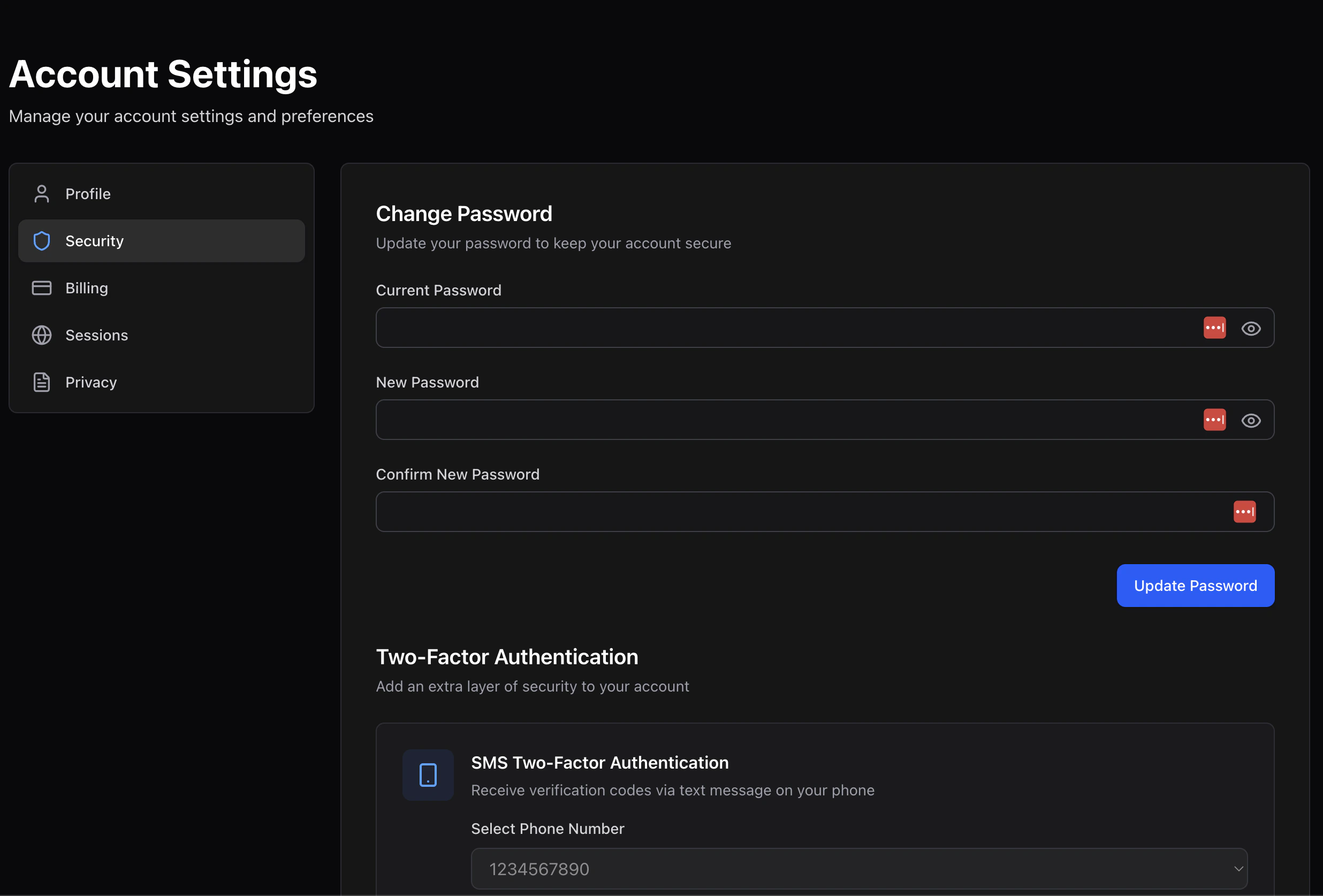
## Change your password
At `time2.bike/account/settings/security`:
Required to confirm it's you.
Minimum 8 characters. Time2Bike doesn't enforce specific complexity
rules — pick something long and unique.
Type it again to avoid typos.
On success, **every other session** on your account is signed out and
your current session keeps a fresh token. Other devices need to sign
in again.
 ## Multi-factor authentication (MFA)
Time2Bike supports two MFA methods:
* **Text message (SMS)** — code sent to a verified phone number
* **Email** — code sent to your account email
### Turning on SMS MFA
Add and verify a phone in [Profile](/riders/account/profile).
On the Security page, select the phone from the dropdown.
Time2Bike sends a test code. Enter it to confirm.
### Turning on email MFA
Toggle **Email MFA** on. No verification needed — your account email is
already verified.
You can have both methods on at once; sign-in will let you pick.
### Turning MFA off
Toggle a method off and confirm with your password. If you turn off the
**only** active method, MFA is fully disabled and sign-in becomes a
single-step password again.
## Active sessions
`time2.bike/account/settings/sessions` lists every browser and device
signed in to your account.
Each session shows:
* The **device** (browser + OS, parsed from user agent)
* The **IP** location
* The **last active** timestamp
## Multi-factor authentication (MFA)
Time2Bike supports two MFA methods:
* **Text message (SMS)** — code sent to a verified phone number
* **Email** — code sent to your account email
### Turning on SMS MFA
Add and verify a phone in [Profile](/riders/account/profile).
On the Security page, select the phone from the dropdown.
Time2Bike sends a test code. Enter it to confirm.
### Turning on email MFA
Toggle **Email MFA** on. No verification needed — your account email is
already verified.
You can have both methods on at once; sign-in will let you pick.
### Turning MFA off
Toggle a method off and confirm with your password. If you turn off the
**only** active method, MFA is fully disabled and sign-in becomes a
single-step password again.
## Active sessions
`time2.bike/account/settings/sessions` lists every browser and device
signed in to your account.
Each session shows:
* The **device** (browser + OS, parsed from user agent)
* The **IP** location
* The **last active** timestamp
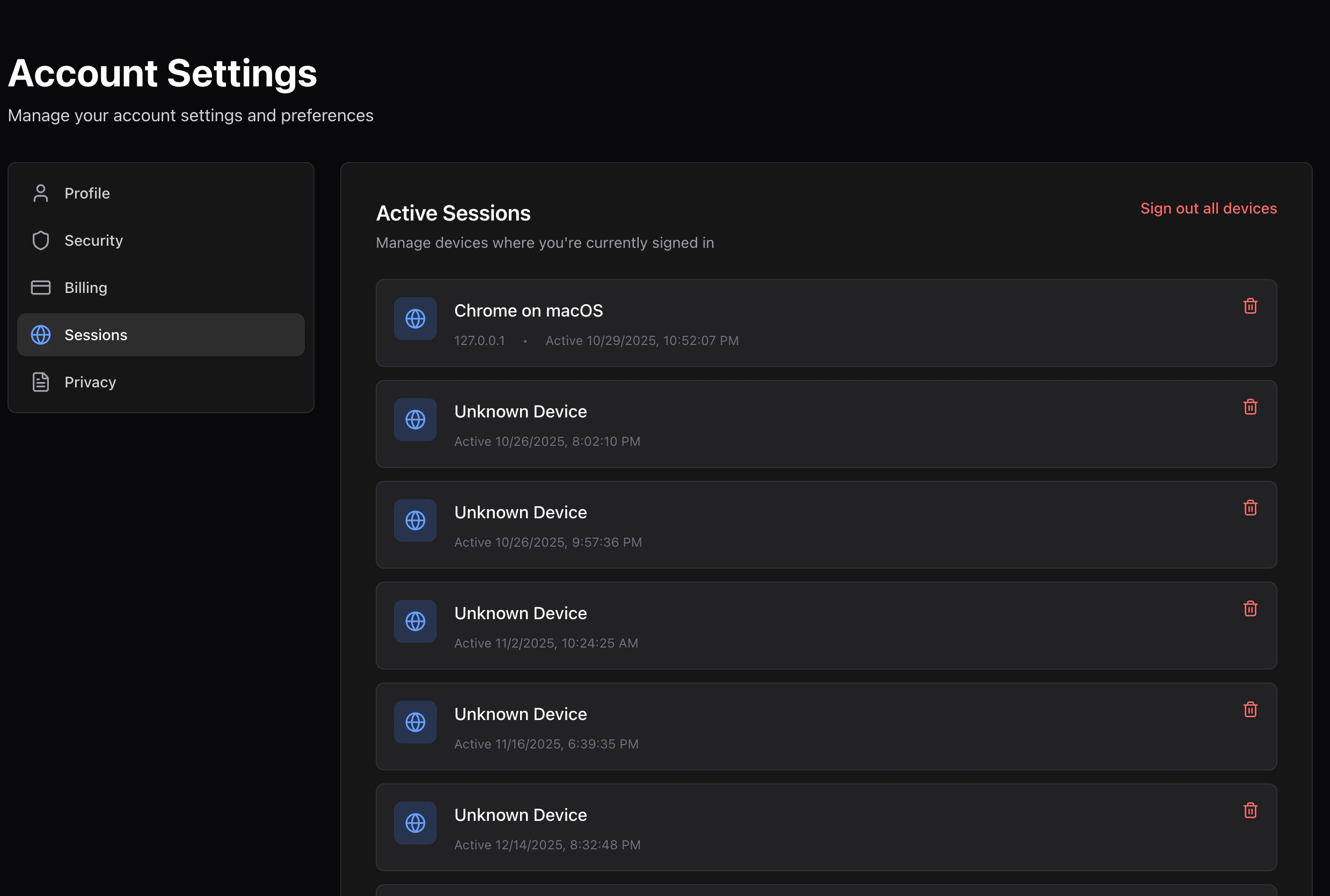 Click **Sign out** on any session to revoke it. The token is invalidated
server-side immediately. Your current session is marked **(this device)**
so you don't accidentally lock yourself out.
Use this if you signed in on a shared computer or lost a device.
Click **Sign out** on any session to revoke it. The token is invalidated
server-side immediately. Your current session is marked **(this device)**
so you don't accidentally lock yourself out.
Use this if you signed in on a shared computer or lost a device.