> ## Documentation Index
> Fetch the complete documentation index at: https://docs.time2.bike/llms.txt
> Use this file to discover all available pages before exploring further.
# The registration flow
> What the 5-step registration flow looks like, from picking participants to paying.
When you click **Register** on an event page, you enter a 5-step flow at
`/events/[slug]/register?races=[race-ids]`.
Tell Time2Bike *who* is racing. See [Picking participants](#participants).
Sign the waivers each participant needs to compete. See
[Waivers](/riders/registering/waivers).
Answer any custom questions the organizer is collecting. See
[Custom questions](/riders/registering/custom-questions).
Optionally throw merch (jerseys, parking passes, etc.) into the order.
Confirm everything, enter a discount code if you have one, and pay.
See [Coupons & pricing](/riders/registering/coupons-and-pricing) and
[Checkout & confirmation](/riders/registering/checkout-and-confirmation).
## Picking participants
A **participant** is the person actually racing. You can have multiple
participants on your account — yourself, a partner, kids — and pick which
one is racing each race.
For each race you registered for, you'll see a row labeled **Participant
for \**. For each row, you can:
* **Select existing** — pick someone you've already saved on your account.
* **Add new** — fill out the participant form (name, birthday, emergency
contact, etc.) and save them to your account for future races.
* **Invite** — enter someone's email or phone number. They'll get a
link to finish their own registration (sign waivers, answer questions)
while you pay now. See [Invite a rider](#invite).
* **Edit** — change details on an existing participant (only if you own
or manage that profile).
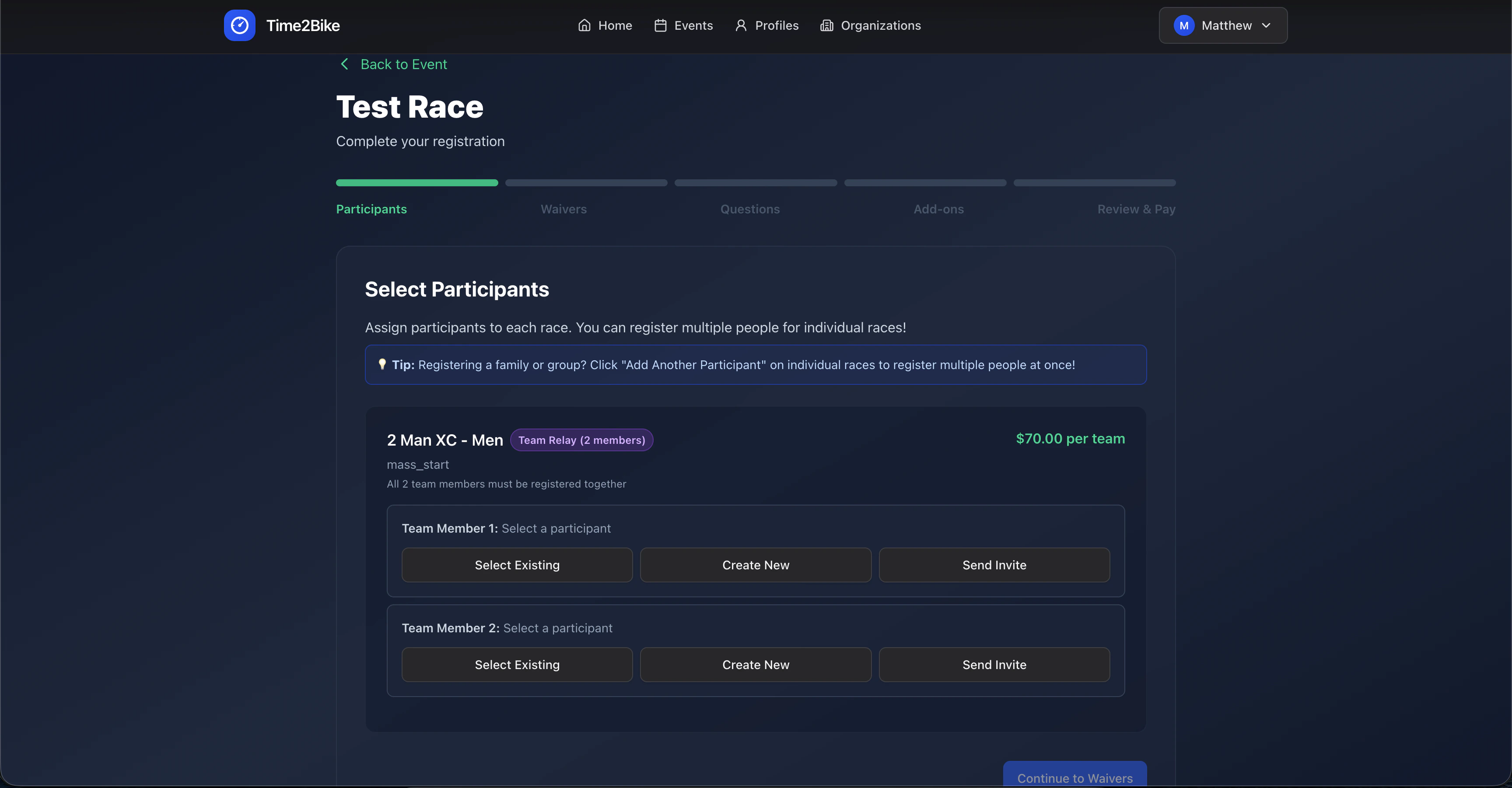 ### Team races
If a race is configured as a **team event**, Time2Bike asks for the full
team. You'll see one row per team slot and **all** slots have to be
filled before you can continue. You can mix and match — some existing
participants, some invites.
### What can block you
Time2Bike refuses to add a participant to a race when:
* They're already registered for that race (paid or pending).
* The race has a **gender restriction** they don't match (the race is
"women only" / "men only" — based on `competitionSex` on the
participant's profile).
* They've already been picked for this race in another slot of this same
registration.
You'll see an inline error explaining which rule was hit.
## Inviting a rider
Use **Invite** when you want to register a teammate, friend, or family
member but you don't have their info on file.
Either works. Time2Bike sends them a link to claim their spot.
You pay for their entry as part of your checkout. Their spot is
held as **invited**.
The link opens
`/events/[slug]/complete-registration?registrationId=[id]` where they
sign in (or create an account), pick or create their own participant
profile, sign waivers, and answer questions. No payment — already
paid by you.
Once they finish, they show up on the start list with full details.
If they never claim their invite by race day, contact the organizer.
Invited spots are visible to organizers in the registrations table.
## Next
Some races ask follow-up questions like t-shirt size or category preference.
### Team races
If a race is configured as a **team event**, Time2Bike asks for the full
team. You'll see one row per team slot and **all** slots have to be
filled before you can continue. You can mix and match — some existing
participants, some invites.
### What can block you
Time2Bike refuses to add a participant to a race when:
* They're already registered for that race (paid or pending).
* The race has a **gender restriction** they don't match (the race is
"women only" / "men only" — based on `competitionSex` on the
participant's profile).
* They've already been picked for this race in another slot of this same
registration.
You'll see an inline error explaining which rule was hit.
## Inviting a rider
Use **Invite** when you want to register a teammate, friend, or family
member but you don't have their info on file.
Either works. Time2Bike sends them a link to claim their spot.
You pay for their entry as part of your checkout. Their spot is
held as **invited**.
The link opens
`/events/[slug]/complete-registration?registrationId=[id]` where they
sign in (or create an account), pick or create their own participant
profile, sign waivers, and answer questions. No payment — already
paid by you.
Once they finish, they show up on the start list with full details.
If they never claim their invite by race day, contact the organizer.
Invited spots are visible to organizers in the registrations table.
## Next
Some races ask follow-up questions like t-shirt size or category preference.