> ## Documentation Index
> Fetch the complete documentation index at: https://docs.time2.bike/llms.txt
> Use this file to discover all available pages before exploring further.
# A tour of the screen
> Every part of the timing screen, top to bottom, and what it does.
Open your event and click **Live Timing**. This is what you're looking at.
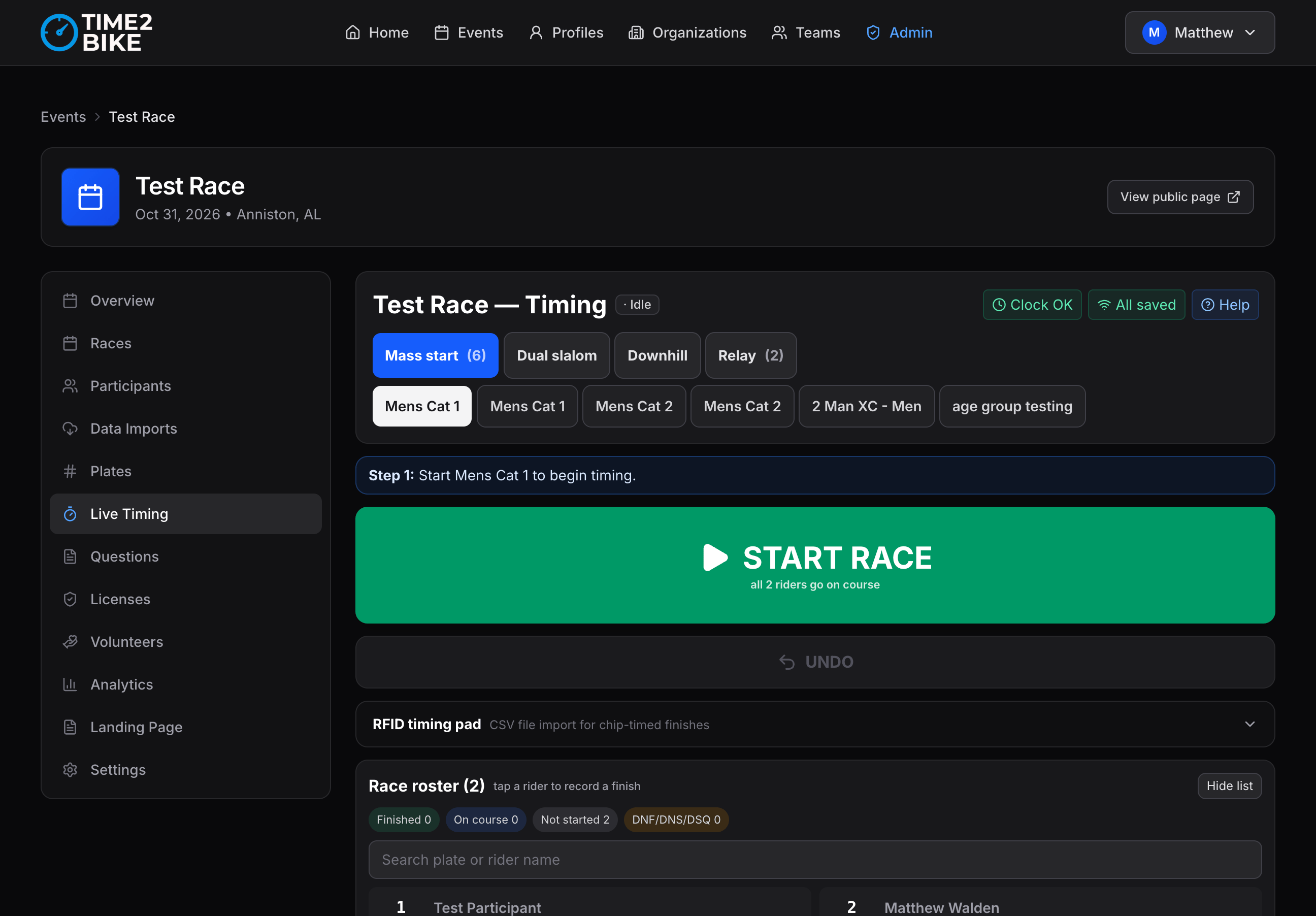 > !!-IMAGE-NEEDED-!! — The full timing screen with callout numbers on each region described below.
## Top bar
| What | What it tells you |
| ------------------------ | -------------------------------------------------------------------------------------------------------------------------------------------- |
| **Race tabs** | Every race in the event. The highlighted one is where your entries go. Tap to switch — the controls below change to suit that race's format. |
| **Status badge** | Whether the timer is running, paused, stopped, finalized, or published. |
| **Clock chip** — `±5 ms` | How closely this device agrees with Time2Bike's clock. Under 50 ms is excellent; over 200 ms means a flaky connection. |
| **Sync chip** | 🟢 synced, 🟡 *N* queued, 🔴 offline. Tap it to see exactly what's waiting to upload. |
| **Help** | The full operator reference, built into the screen. |
Getting the race tab wrong is the most common race-day mistake and the one
that takes longest to unpick. Check it before every race.
## The blue hint bar
A one-line prompt telling you what to do next — *Step 1: Start Cat 3 Men to begin
timing*, then *Step 2: Enter a plate number or tap a rider*. It follows the state
of the race, so if you're not sure what to do, read that line.
## The race board
A panel at the top listing every race in the event and what it's doing right
now — running with a live clock, stopped with a finisher count, or not started.
> !!-IMAGE-NEEDED-!! — The race board with three races running and one not started.
* The header says **3 of 5 races running**, so you never have to click through
tabs to find out what's live.
* **Start or stop any race from here**, without leaving the one you're recording
into.
* Tap a race name to switch to it. The row you're recording into is badged
**recording**, and defers to the big buttons below rather than offering a
second set.
It collapses, and starts collapsed when the event has only one race.
## Start / Pause / Stop
Big buttons for the race you're recording into, sized for cold hands.
* **START RACE** — opens the clock. The label underneath tells you what pressing
it actually does to the field: *all 47 riders go on course*, or *riders go on
course as you check them in*.
* **Pause / Resume** — labelled **Freeze clock** or **Pause entries** depending
on how the timer is set. Freezing stops everyone's elapsed time (a real course
hold); pausing entries just stops recording while the clock runs on.
* **STOP** — ends the race. You can still fix everything afterwards.
* **Set the start time** — the small button under the grid. Puts the start at a
time you type off the clock instead of the moment you press a button, for a
race that went while nobody was at the screen. Once a race is running the same
button reads **Correct the start time**.
Pressing START on a race that's already running says **RESTART RACE** instead —
only do that if you fired the previous start by mistake, because it invalidates
the finishes already recorded against the old clock. If the start merely
happened *earlier* than you pressed it, use **Correct the start time** instead:
that keeps every finish and re-times them.
Interval-start and dual-slalom races don't show this grid; their starts happen
per rider or per lane.
## The big number box
The single most important control. Type a bib, press **Enter**.
* It stays focused, so you don't have to click it before typing.
* As you type, matching riders appear as chips — tap one instead of finishing
the number.
* There's an on-screen digit pad for gloved hands and touchscreens.
* An **UNDO** button sits next to it. One tap reverses your last recording.
What Enter *does* depends on your recording point — finish, lap, split, or
check-in. See [Recording points](/timing/screen/recording-points).
## On course
Riders who've started but not finished, sorted by elapsed time. This is your
"who's still out there" list, and at the end of a race it's your DNF list.
## Registered riders
The full roster for the selected race. Tap any name to record them right now —
what you reach for when a bib is unreadable or caked in mud.
There's a search box, and the list collapses automatically for big fields so the
timing controls stay above the fold.
## Any result row
Tap a row to open its menu: manual time, DNF/DNS/DSQ, add a note, record a
split, void a lap, delete. What you see depends on your access level.
→ [Corrections](/timing/screen/corrections)
## Timer setup
One button below the rider lists opens **Timer setup** — every setting for this
timer, in one panel with three sections.
> !!-IMAGE-NEEDED-!! — The **Timer setup** panel open on the "How I am timing" section.
| Section | What's in it |
| ------------------- | ------------------------------------------------------------------------------------------------------------------------------------------ |
| **This device** | Where you're standing, and whether that follows you between races. Saves as you tap → [Recording points](/timing/screen/recording-points) |
| **How I am timing** | One race at a time vs one shared chute · how precisely times are shown · what pause means. Plus the way into wave setup and operator links |
| **Races** | Pick **one race, several, or all of them**, then set laps, timing points on course, and whether riders start at the gun or check in |
### Setting up several races at once
Five criterium categories usually want identical settings, and doing them one at
a time is how the fourth ends up different. Tick as many races as you like — or
**All races** — and set them together.
Two rules keep that safe:
* **Only what you change gets written.** Anything you don't touch is left exactly
as it is on each race. Selecting five races and editing the lap count won't
flatten their timing points.
* **Where the selected races disagree, the field shows `mixed`** and stays that
way until you set it. Nothing picks a value on your behalf.
Fields you have changed are badged **will change**, so you can see what's about to
be written before you press save — which names its target: *Save to 5 races*.
Changing the selection mid-edit keeps your pending changes and applies them to
whatever is selected when you save. Untouched fields re-read from the new
selection.
There's also **…and the default for any race added later**, which writes the same
settings to the fallback new races inherit.
Settings used to be spread across four surfaces, including a button called
"Configure default lap mode (fallback)" that held finish style and display
precision. If you're looking for something from an older screenshot, it's in
here.
Anything that has to talk to a device — the RFID watcher, laser boxes — stays on
the timing screen itself, because it needs the machine you're standing at.
The interval-start, dual-slalom and combined screens replace the standard one,
so they don't show the Timer setup button. Reach it from **More actions →
Timer setup** there.
## Footer
| Button | What it does |
| --------------------------------------- | ------------------------------------------------------------------------------------------------------------------------------ |
| **More actions** | Exports, imports, add riders, PDFs, reset — plus a second way into **Timer setup**, for the screens that don't show its button |
| **Share live results** | Opens a public spectator link that updates as you time |
| **Finalize Session** | Locks the results |
| **Results PDF** / **Publish to public** | Appear once you've finalized |
## Inside More actions
Worth knowing what's in there before you need it:
Saves the timing screen onto this device so it opens with no signal at all.
Do this the day before if you're racing somewhere remote.
Enter a drop-in by bib, name, and team without them registering. Works
offline. → [Adding riders](/timing/screen/adding-riders)
CSV, JSON, printed results, per-race PDF, whole-event PDF, whole-event CSV.
Printing and the CSV/JSON exports work offline.
→ [Exports](/timing/results/exports)
Create and revoke volunteer links.
→ [Volunteer links](/timing/crew/tokens-and-qr)
Award a mid-race prime to a rider on a given lap.
→ [Laps & primes](/timing/formats/laps-and-primes)
Pull results in from another timing platform's file.
Wipes timing for one race or the whole event and starts over. There's a
confirmation, and it's blocked while anything is still waiting to upload.
Use it after a test run.
## Next
Telling the screen where on the course you're standing.
Fixing what goes wrong.
> !!-IMAGE-NEEDED-!! — The full timing screen with callout numbers on each region described below.
## Top bar
| What | What it tells you |
| ------------------------ | -------------------------------------------------------------------------------------------------------------------------------------------- |
| **Race tabs** | Every race in the event. The highlighted one is where your entries go. Tap to switch — the controls below change to suit that race's format. |
| **Status badge** | Whether the timer is running, paused, stopped, finalized, or published. |
| **Clock chip** — `±5 ms` | How closely this device agrees with Time2Bike's clock. Under 50 ms is excellent; over 200 ms means a flaky connection. |
| **Sync chip** | 🟢 synced, 🟡 *N* queued, 🔴 offline. Tap it to see exactly what's waiting to upload. |
| **Help** | The full operator reference, built into the screen. |
Getting the race tab wrong is the most common race-day mistake and the one
that takes longest to unpick. Check it before every race.
## The blue hint bar
A one-line prompt telling you what to do next — *Step 1: Start Cat 3 Men to begin
timing*, then *Step 2: Enter a plate number or tap a rider*. It follows the state
of the race, so if you're not sure what to do, read that line.
## The race board
A panel at the top listing every race in the event and what it's doing right
now — running with a live clock, stopped with a finisher count, or not started.
> !!-IMAGE-NEEDED-!! — The race board with three races running and one not started.
* The header says **3 of 5 races running**, so you never have to click through
tabs to find out what's live.
* **Start or stop any race from here**, without leaving the one you're recording
into.
* Tap a race name to switch to it. The row you're recording into is badged
**recording**, and defers to the big buttons below rather than offering a
second set.
It collapses, and starts collapsed when the event has only one race.
## Start / Pause / Stop
Big buttons for the race you're recording into, sized for cold hands.
* **START RACE** — opens the clock. The label underneath tells you what pressing
it actually does to the field: *all 47 riders go on course*, or *riders go on
course as you check them in*.
* **Pause / Resume** — labelled **Freeze clock** or **Pause entries** depending
on how the timer is set. Freezing stops everyone's elapsed time (a real course
hold); pausing entries just stops recording while the clock runs on.
* **STOP** — ends the race. You can still fix everything afterwards.
* **Set the start time** — the small button under the grid. Puts the start at a
time you type off the clock instead of the moment you press a button, for a
race that went while nobody was at the screen. Once a race is running the same
button reads **Correct the start time**.
Pressing START on a race that's already running says **RESTART RACE** instead —
only do that if you fired the previous start by mistake, because it invalidates
the finishes already recorded against the old clock. If the start merely
happened *earlier* than you pressed it, use **Correct the start time** instead:
that keeps every finish and re-times them.
Interval-start and dual-slalom races don't show this grid; their starts happen
per rider or per lane.
## The big number box
The single most important control. Type a bib, press **Enter**.
* It stays focused, so you don't have to click it before typing.
* As you type, matching riders appear as chips — tap one instead of finishing
the number.
* There's an on-screen digit pad for gloved hands and touchscreens.
* An **UNDO** button sits next to it. One tap reverses your last recording.
What Enter *does* depends on your recording point — finish, lap, split, or
check-in. See [Recording points](/timing/screen/recording-points).
## On course
Riders who've started but not finished, sorted by elapsed time. This is your
"who's still out there" list, and at the end of a race it's your DNF list.
## Registered riders
The full roster for the selected race. Tap any name to record them right now —
what you reach for when a bib is unreadable or caked in mud.
There's a search box, and the list collapses automatically for big fields so the
timing controls stay above the fold.
## Any result row
Tap a row to open its menu: manual time, DNF/DNS/DSQ, add a note, record a
split, void a lap, delete. What you see depends on your access level.
→ [Corrections](/timing/screen/corrections)
## Timer setup
One button below the rider lists opens **Timer setup** — every setting for this
timer, in one panel with three sections.
> !!-IMAGE-NEEDED-!! — The **Timer setup** panel open on the "How I am timing" section.
| Section | What's in it |
| ------------------- | ------------------------------------------------------------------------------------------------------------------------------------------ |
| **This device** | Where you're standing, and whether that follows you between races. Saves as you tap → [Recording points](/timing/screen/recording-points) |
| **How I am timing** | One race at a time vs one shared chute · how precisely times are shown · what pause means. Plus the way into wave setup and operator links |
| **Races** | Pick **one race, several, or all of them**, then set laps, timing points on course, and whether riders start at the gun or check in |
### Setting up several races at once
Five criterium categories usually want identical settings, and doing them one at
a time is how the fourth ends up different. Tick as many races as you like — or
**All races** — and set them together.
Two rules keep that safe:
* **Only what you change gets written.** Anything you don't touch is left exactly
as it is on each race. Selecting five races and editing the lap count won't
flatten their timing points.
* **Where the selected races disagree, the field shows `mixed`** and stays that
way until you set it. Nothing picks a value on your behalf.
Fields you have changed are badged **will change**, so you can see what's about to
be written before you press save — which names its target: *Save to 5 races*.
Changing the selection mid-edit keeps your pending changes and applies them to
whatever is selected when you save. Untouched fields re-read from the new
selection.
There's also **…and the default for any race added later**, which writes the same
settings to the fallback new races inherit.
Settings used to be spread across four surfaces, including a button called
"Configure default lap mode (fallback)" that held finish style and display
precision. If you're looking for something from an older screenshot, it's in
here.
Anything that has to talk to a device — the RFID watcher, laser boxes — stays on
the timing screen itself, because it needs the machine you're standing at.
The interval-start, dual-slalom and combined screens replace the standard one,
so they don't show the Timer setup button. Reach it from **More actions →
Timer setup** there.
## Footer
| Button | What it does |
| --------------------------------------- | ------------------------------------------------------------------------------------------------------------------------------ |
| **More actions** | Exports, imports, add riders, PDFs, reset — plus a second way into **Timer setup**, for the screens that don't show its button |
| **Share live results** | Opens a public spectator link that updates as you time |
| **Finalize Session** | Locks the results |
| **Results PDF** / **Publish to public** | Appear once you've finalized |
## Inside More actions
Worth knowing what's in there before you need it:
Saves the timing screen onto this device so it opens with no signal at all.
Do this the day before if you're racing somewhere remote.
Enter a drop-in by bib, name, and team without them registering. Works
offline. → [Adding riders](/timing/screen/adding-riders)
CSV, JSON, printed results, per-race PDF, whole-event PDF, whole-event CSV.
Printing and the CSV/JSON exports work offline.
→ [Exports](/timing/results/exports)
Create and revoke volunteer links.
→ [Volunteer links](/timing/crew/tokens-and-qr)
Award a mid-race prime to a rider on a given lap.
→ [Laps & primes](/timing/formats/laps-and-primes)
Pull results in from another timing platform's file.
Wipes timing for one race or the whole event and starts over. There's a
confirmation, and it's blocked while anything is still waiting to upload.
Use it after a test run.
## Next
Telling the screen where on the course you're standing.
Fixing what goes wrong.