

1. Get on the timing screen
If the race director sent you a QR code or a link, scan or open it on the device you’ll be timing with. You’ll see a card confirming what you’re joining — tap Continue. That’s it. No password, no account. The link remembers itself on that device, so if the screen closes you can just open the browser again.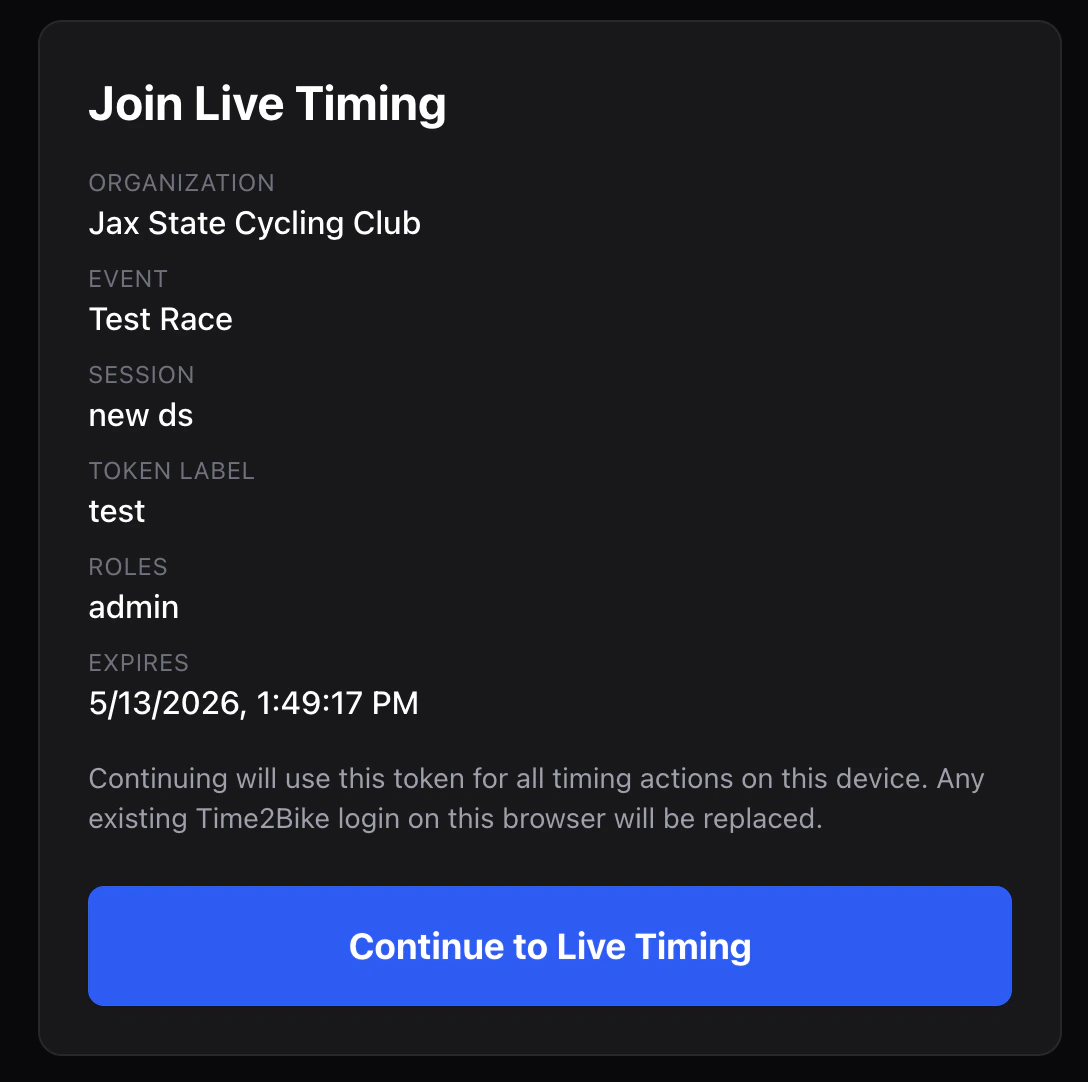
2. Check two things before the gun
The right race
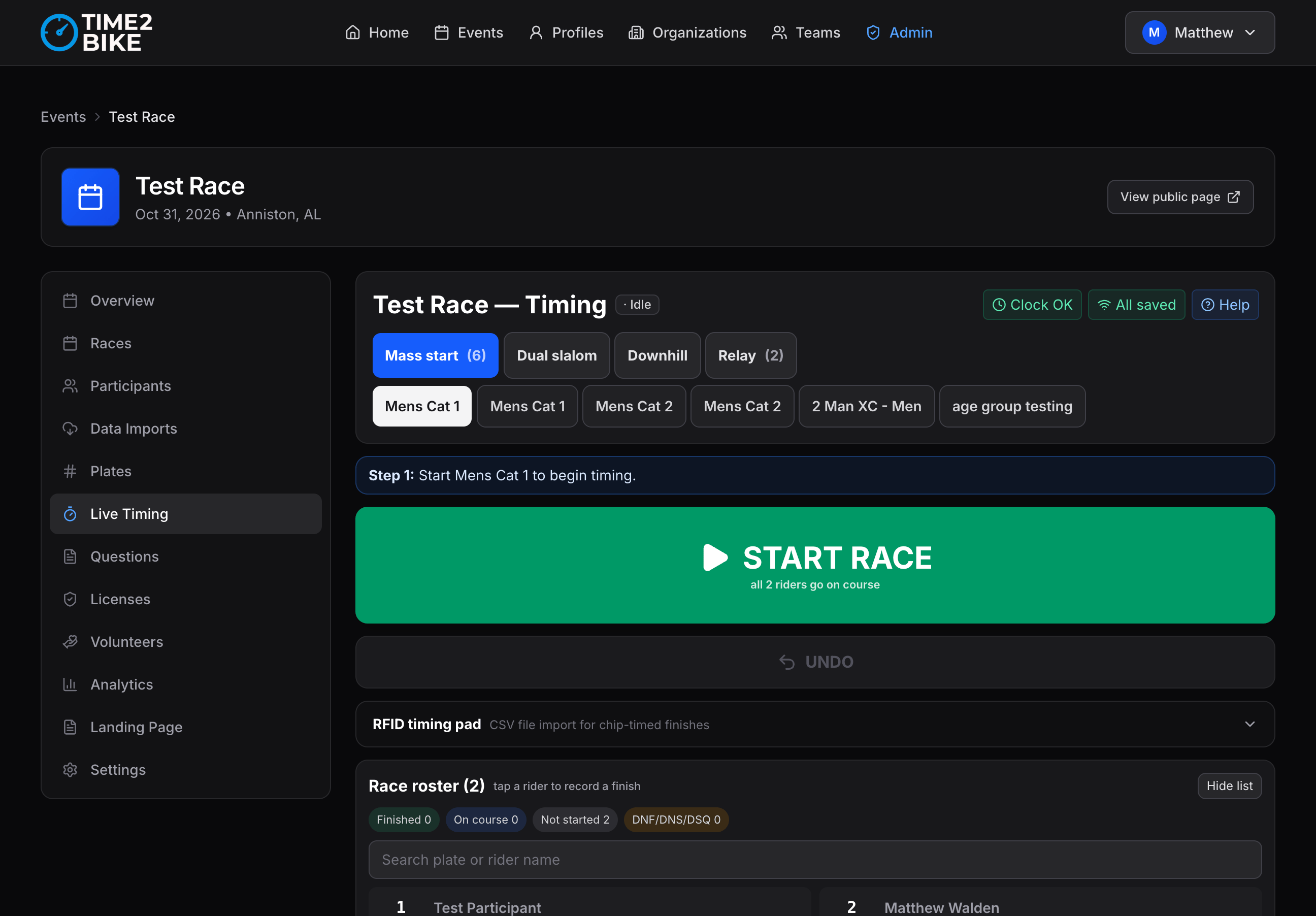
A strip of race tabs runs across the top. The highlighted one is where your
entries go. Check it before every race.
The right recording point
If there’s a row of buttons above the number box — Start line, a split name,
Finish — tap the one for where you’re standing. It stays set.
3. Start the clock
Press the big START RACE button when the race begins. The small text under it tells you what that does to the field. Missed it? Record finishes anyway — they’ll say “awaiting start”. Then press Set the start time under the button and type when the race actually went; every time works itself out from there, including finishes you already took. Some races don’t have this button — interval starts release riders one at a time, and dual slalom starts per pair.4. Record
Whichever is fastest in the moment: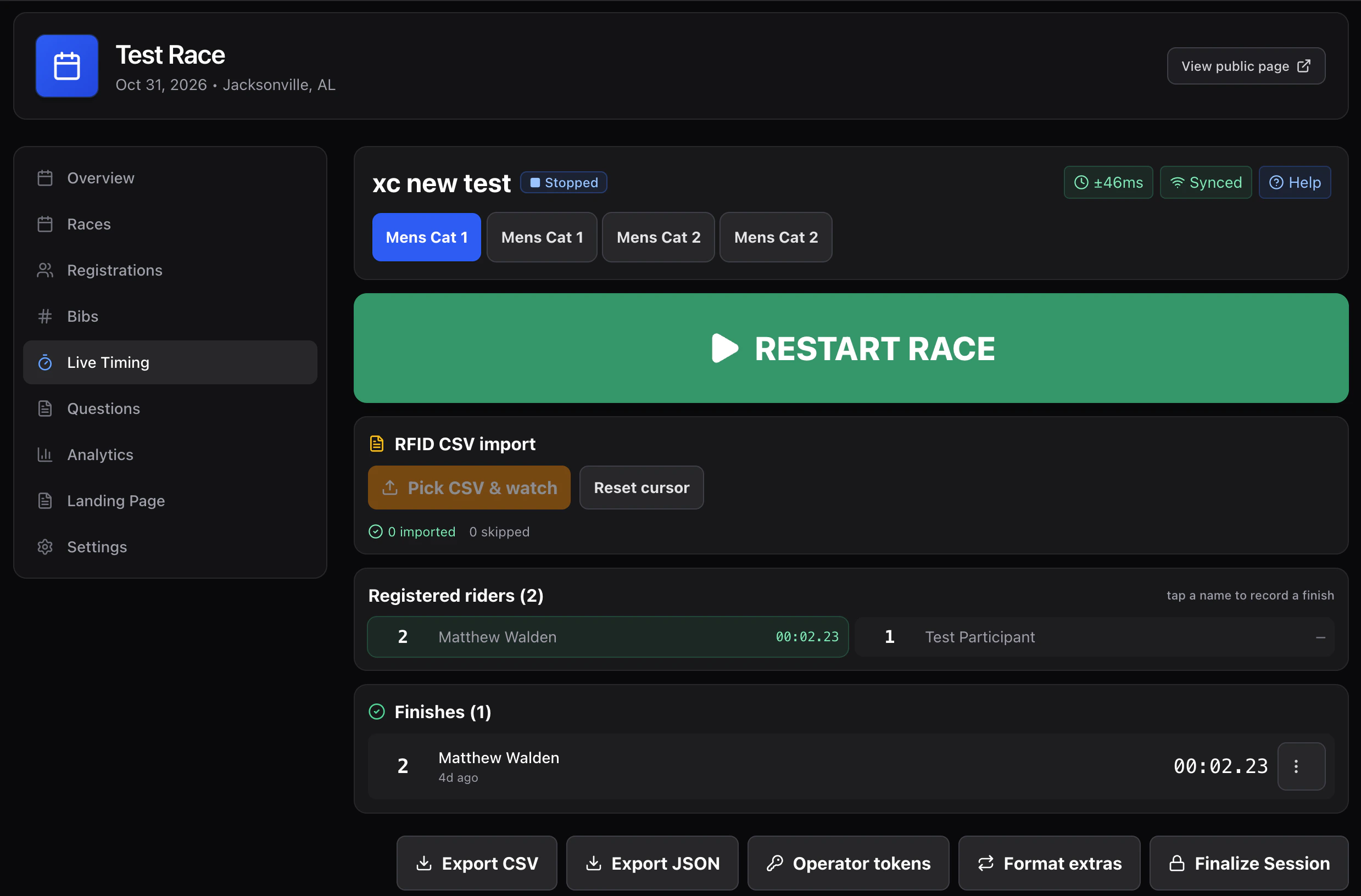
5. Fix mistakes
Just made one? Press UNDO. It’s next to the number box and reverses your last entry. Use it immediately rather than hunting for the row. For anything older, tap the rider’s row: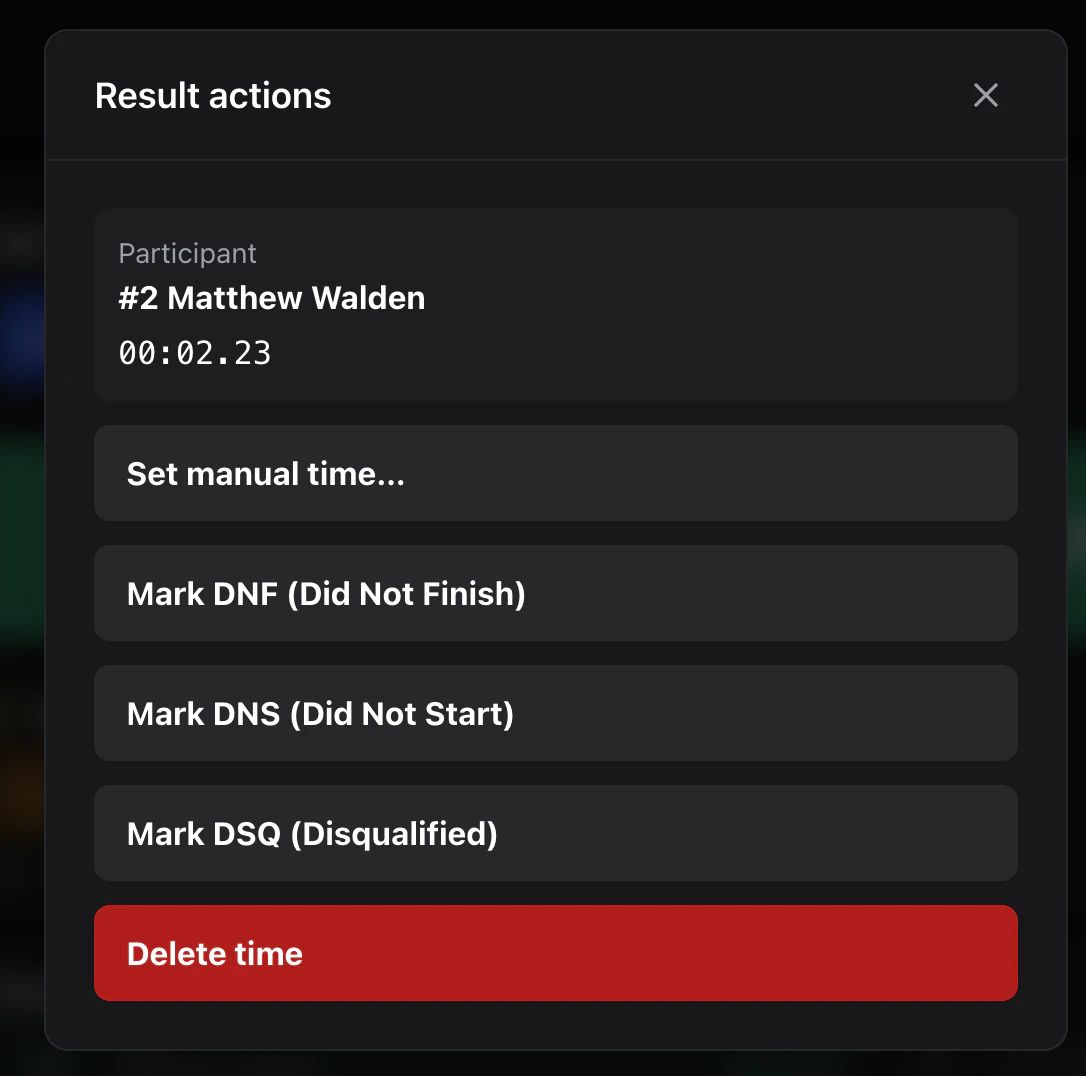
6. About signal
You don’t need it. Every entry is saved to your device the moment you record it. In a canyon with no bars, keep timing exactly as normal. The dot in the corner tells you where things stand:7. Someone turns up on the day
More actions → Add riders. Bib, name, team, race. Works with no signal. Collect their waiver and money on paper — the timing screen doesn’t do either. → Adding riders8. When the race ends
- Press STOP on the race.
- Look down the finish list. Sort out anything flagged while riders are still around.
- Mark anyone who didn’t start as DNS.
- Hand the device back — or if you have the access, Finalize, then Publish.