Change your password
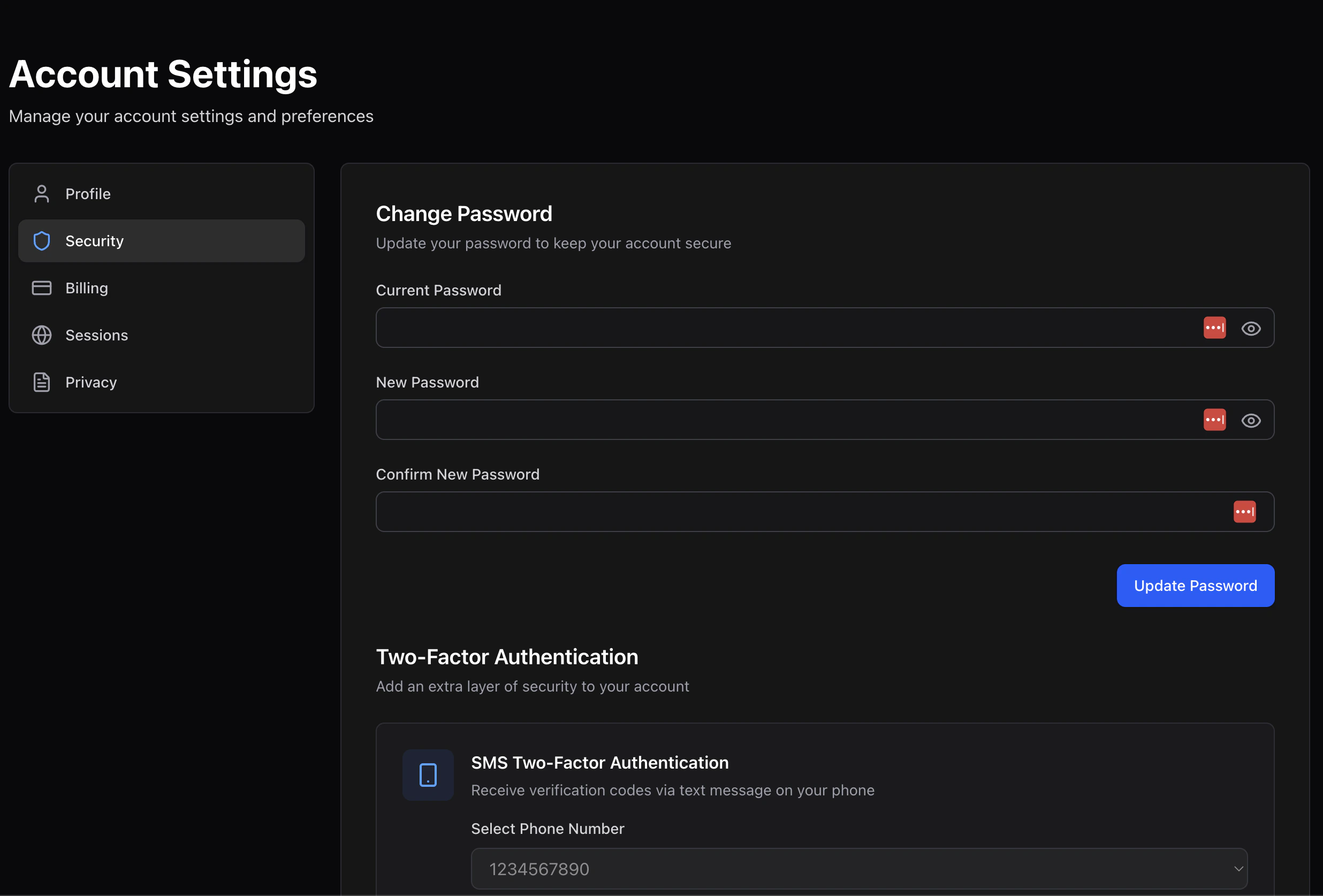
Attime2.bike/account/settings/security:
1
Enter your current password
Required to confirm it’s you.
2
Enter a new password
Minimum 8 characters. Time2Bike doesn’t enforce specific complexity
rules — pick something long and unique.
3
Confirm the new password
Type it again to avoid typos.
4
Click Change password
On success, every other session on your account is signed out and
your current session keeps a fresh token. Other devices need to sign
in again.
Multi-factor authentication (MFA)
Time2Bike supports two MFA methods:- Text message (SMS) — code sent to a verified phone number
- Email — code sent to your account email
Turning on SMS MFA
1
Verify a phone first
Add and verify a phone in Profile.
2
Pick the phone
On the Security page, select the phone from the dropdown.
3
Click Enable SMS
Time2Bike sends a test code. Enter it to confirm.
Turning on email MFA
Toggle Email MFA on. No verification needed — your account email is already verified. You can have both methods on at once; sign-in will let you pick.Turning MFA off
Toggle a method off and confirm with your password. If you turn off the only active method, MFA is fully disabled and sign-in becomes a single-step password again.Active sessions
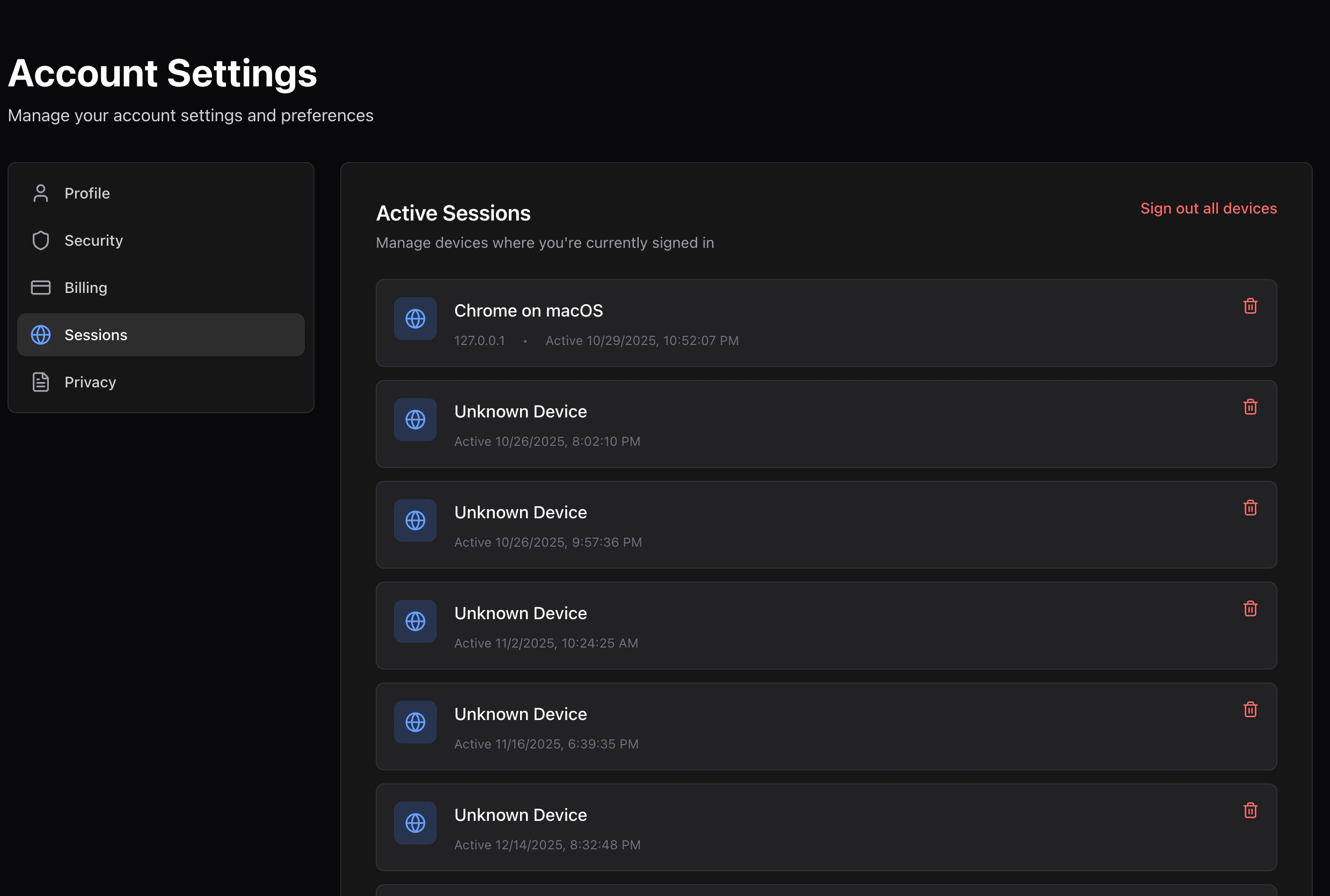
time2.bike/account/settings/sessions lists every browser and device
signed in to your account.
Each session shows:
- The device (browser + OS, parsed from user agent)
- The IP location
- The last active timestamp